시각화 모듈 (라이브러리)
Matplotlib
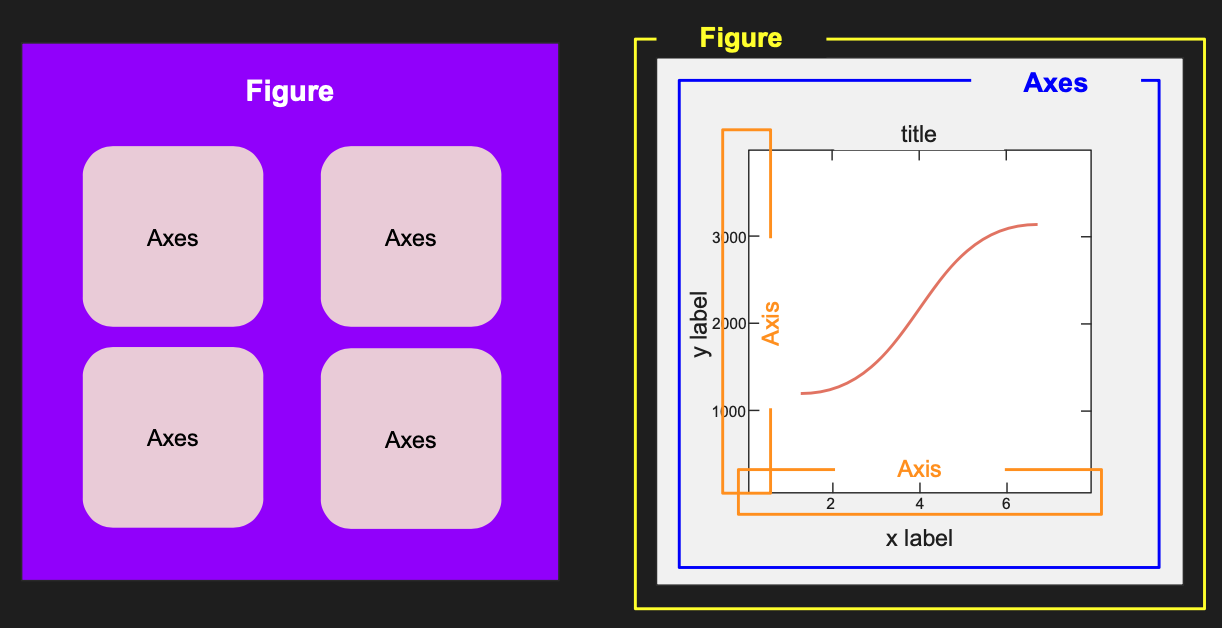
- Figure : 그림, 공간 (이미지 출력 단위)
- Axes : (내부) 축, 영역
| Stateless 직접 지정 | Stateful 자동 지정 |
| import matplotlib fig = plt.figure() ax = fig.add_axes() fig, ax = plt.subplots ax.plot(x, y1) ax.plot(x, y2) plt.show() |
import matplotlib.pylot plt.figure() plt.subplot() plt.plot() plt.subplot() plt.plot() plt.show() |
| -> 디테일, 자유도 높음 | -> 편리, 자유도 적음 |
Seaborn
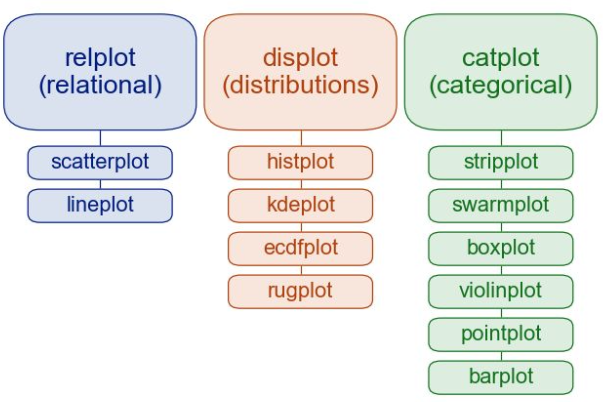
- Pandas 의 DataFrame 과의 호환성 뛰어남
- 간단한 사용 방법
- 제한된 사용성
import seaborn as sns

# seaborn에서 제공하는 데이터셋
penguins = sns.load_dataset('penguins')
sns.histplot(data=penguins, x='flipper_length_mm', hue='species') # hue 범례 지정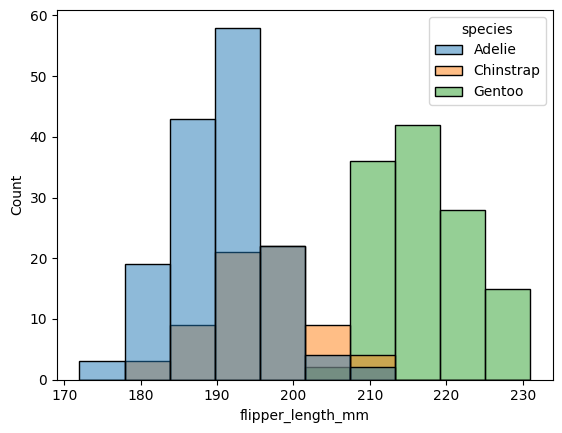
sns.displot(data=penguins, x='flipper_length_mm', hue='species', kind='kde') # 커널밀도추정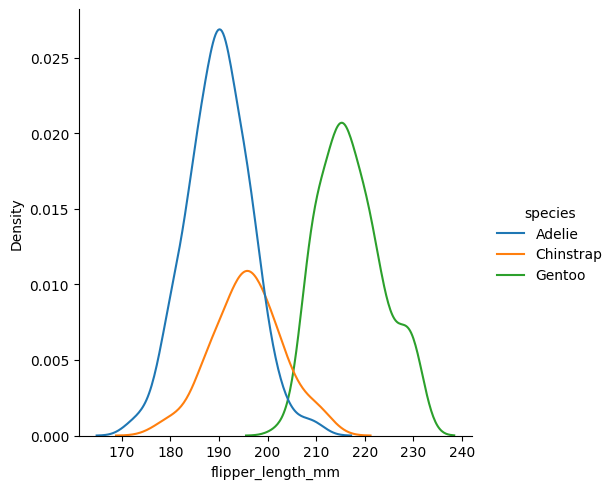
sns.displot(data=penguins, x='flipper_length_mm', hue='species', col='species')
import matplotlib.pyplot as plt

# stateless 방법으로 subplot 지정 (행, 열)
f, ax = plt.subplots(1, 2)
sns.barplot(data=penguins, x='sex', y='flipper_length_mm', ax=ax[0])
sns.barplot(data=penguins, x='sex', y='body_mass_g', ax=ax[1])

plt.show()
# 변수들 간의 상관관계
sns.pairplot(data=penguins, hue='species')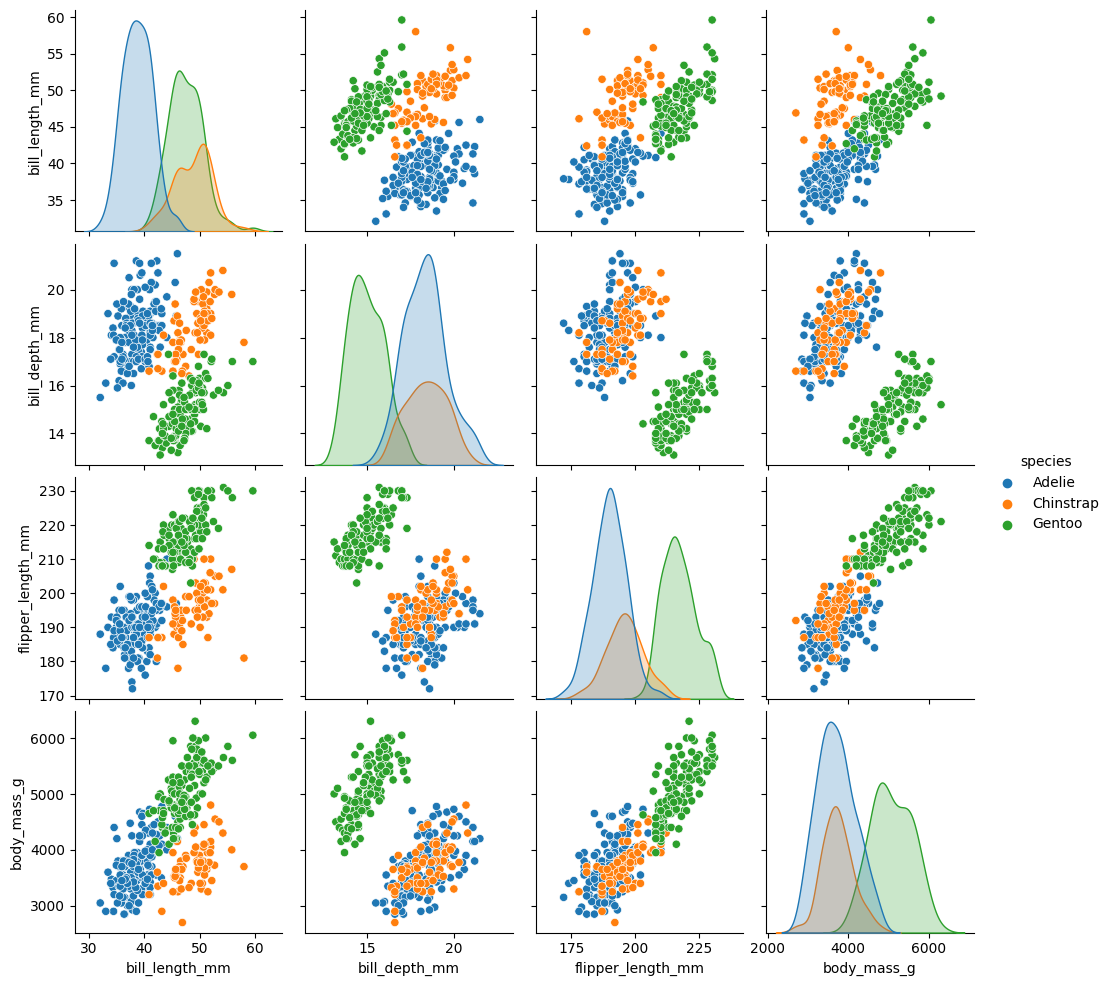
glue = sns.load_dataset('glue').pivot('Model', 'Task', 'Score') # 수치형 데이터
sns.heatmap(glue, annot=True, cmap='crest')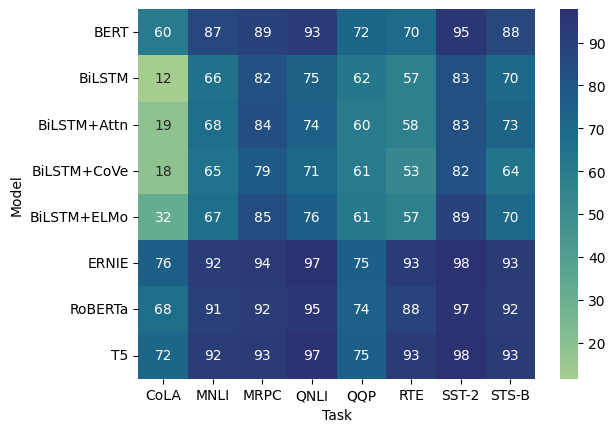
변수들 간의 상관관계 -> pairplot, heatmap
상관관계(Correlation Coefficient)
- 두 변수가 직선(선형) 관계에 있다.
- 두 변수의 인과 관계를 나타내는 것이 아님
- -1 에서 1 까지의 값을 가진다.
- 양수 : 양의 상관 계수 (비례), 음수 : 음의 상관 계수 (반비례)
- -1, 1 에 가까울수록 두 변수의 상관 관계가 높음
- 0.3 < a : 상관관계가 있다
- 0.7 < a : 상관관계가 높다
IBM Arrition 데이터
IBM HR Analytics Employee Attrition & Performance
Predict attrition of your valuable employees
www.kaggle.com
df = pd.read_csv('WA_Fn-UseC_-HR-Employee-Attrition_2.csv')

df.corr().shape  # (26, 26)

# 전체 데이터 히스토그램
df.hist(figsize=(20, 20))
plt.show()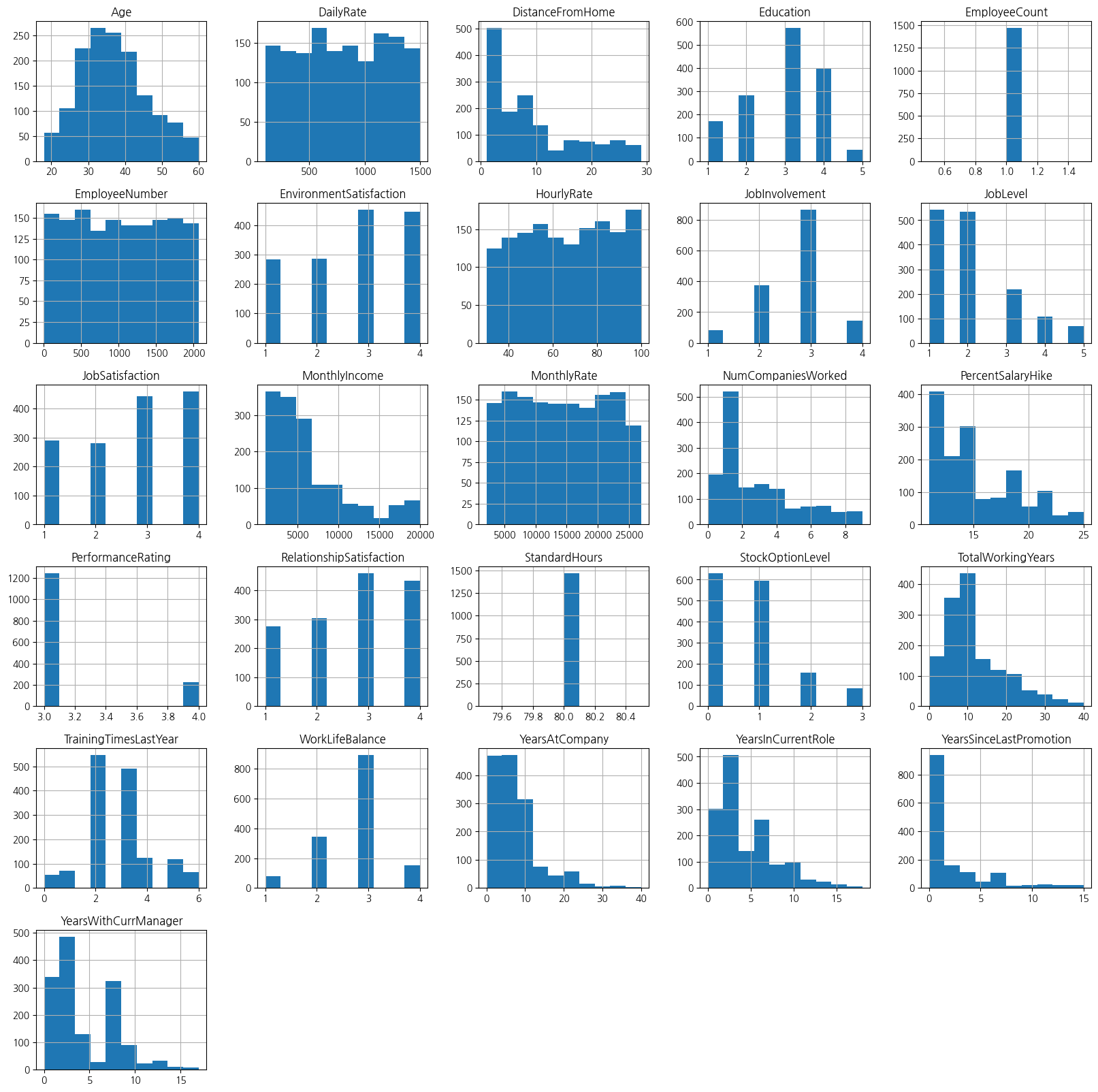
# 상관관계 파악하기
sns.heatmap(df.corr(), fmt='.1f', annot=True)
# 문자로 된 컬럼들 제외됨 (Attrition)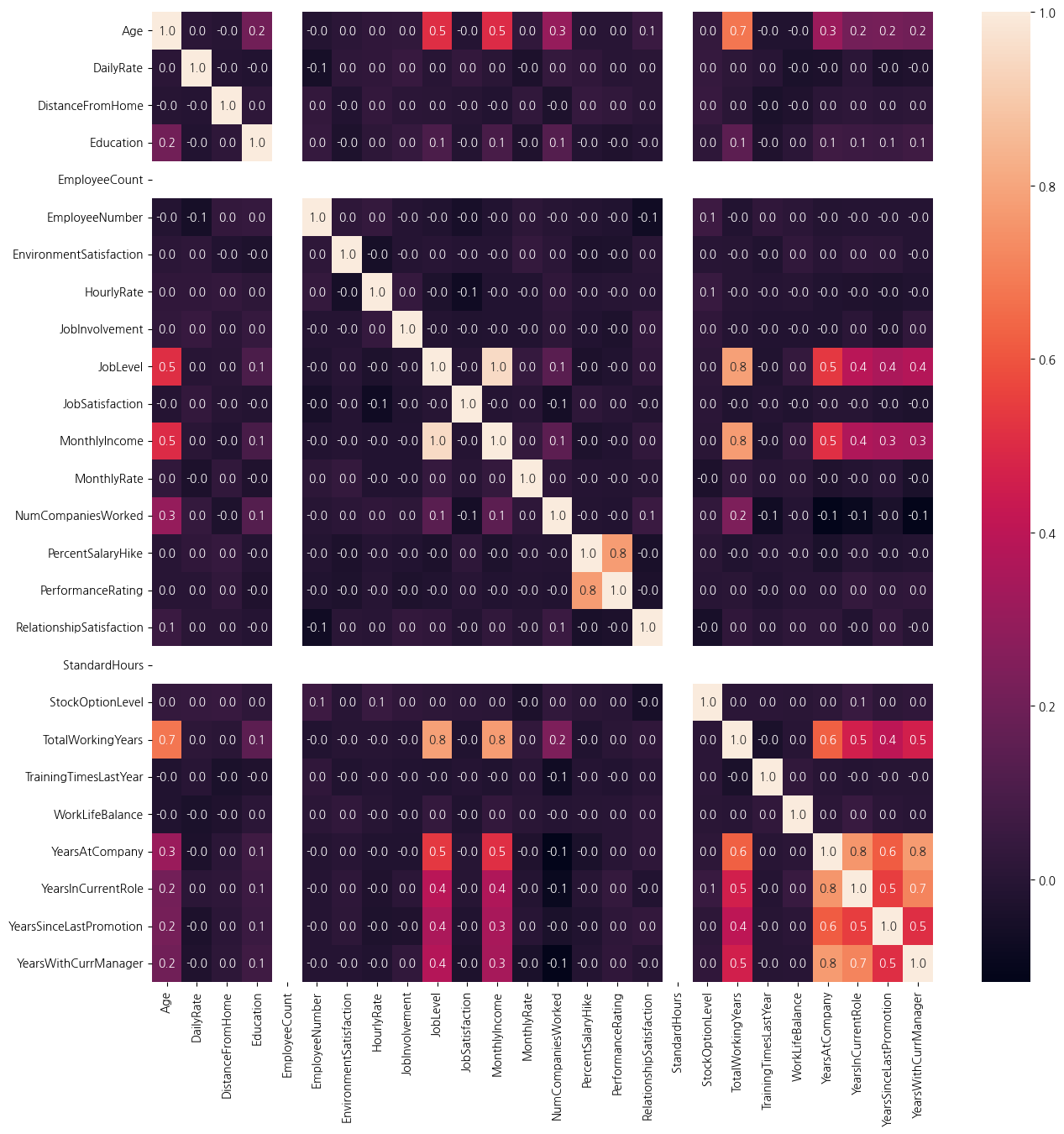
# 데이터 자르기
df1 = df[:1000]

# 필요없는 데이터 drop 시키기
df1 = df1.drop(['EmployeeCount', 'StandardHours'], axis=1)
상관관계가 높은 변수들 위주로 데이터 탐색하기
전체 인원 중 퇴사 인원 비율
attrition = df1['Attrition'][df1['Attrition'] == 'Yes'].count()
total = df1['Attrition'].count()

attrition_p = (attrition / total) * 100  # 전체 직원 중 16.7%가 퇴사함
n_attrition = 100 - attrition_p
직급에 따른 퇴사 비율
df1['JobLevel'].value_counts()
'''
1    370
2    347
3    155
4     74
5     54
'''

# pades Categorical
df1['JobLevel'] = pd.Categorical(df1['JobLevel']).rename_categories(['Entry', 'Mid', 'Senior', 'Lead', 'Executive'])
df1['JobLevel'].value_counts()
'''
Entry        370
Mid          347
Senior       155
Lead          74
Executive     54
'''
attrition_joblevel = df1['JobLevel'][df1['Attrition']=='Yes'] # 퇴사자들 중 레벨 분포
plt.subplot(1, 2, 1)
plt.title('전체 직원의 직급 레벨')
plt.bar(df1['JobLevel'].value_counts().index, df1['JobLevel'].value_counts())
plt.subplot(1, 2, 2)
plt.title('퇴사 직원의 직급 레벨')
plt.bar(attrition_joblevel.value_counts().index, attrition_joblevel.value_counts())
plt.show()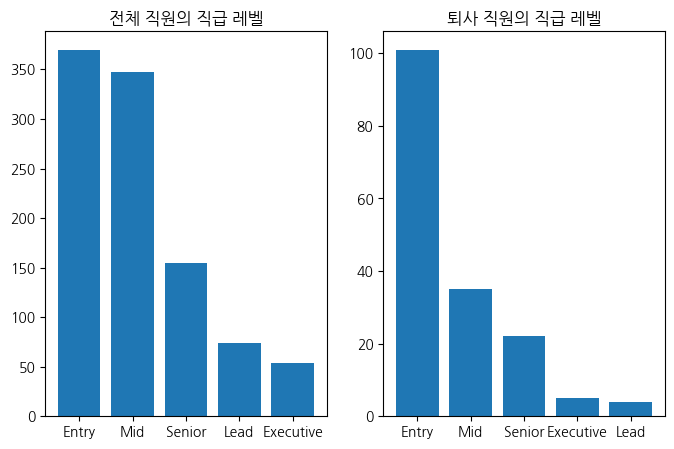
나이에 따른 퇴사 비율
# 나이대 구간 별로 나누기 -> 10~60대
df1['Age_10'] = df1['Age'][(df1['Age'] >= 10) & (df1['Age'] < 20)]
df1['Age_20'] = df1['Age'][(df1['Age'] >= 20) & (df1['Age'] < 30)]
df1['Age_30'] = df1['Age'][(df1['Age'] >= 30) & (df1['Age'] < 40)]
df1['Age_40'] = df1['Age'][(df1['Age'] >= 40) & (df1['Age'] < 50)]
df1['Age_50'] = df1['Age'][(df1['Age'] >= 50) & (df1['Age'] < 60)]
df1['Age_60'] = df1['Age'][(df1['Age'] >= 60) & (df1['Age'] < 70)]
ages = [df1['Age_10'], df1['Age_20'], df1['Age_30'], df1['Age_40'], df1['Age_50'], df1['Age_60']]
ages_cols = pd.concat(ages, axis=1)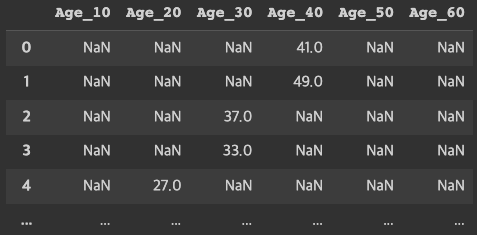
# 조건에 따라서 컬럼, 행으로 값을 넣어줌
# 행 기준으로 데이터를 순회하면서 값이 있는 것을 새로운 컬럼에 넣어준다.

# 새로운 컬럼 생성
df1['Ages'] = ''

col_dic = {
    'Age_10': '10대',
    'Age_20': '20대',
    'Age_30': '30대',
    'Age_40': '40대',
    'Age_50': '50대',
    'Age_60': '60대'
}

# 1. numpy where
# np.where(조건, 참일 때 넣을 값, 거짓일 때 넣을 값)
import numpy as np

for col, age in col_dic.items():
    df1['Ages'] = np.where(df1[col].notnull(), age, df1['Ages'])

# 2. pandas loc -> Boolean Indexing
# df.loc['label(인덱스)', 'col(컬럼명)']
# 연령대 컬럼을 하나의 컬럼으로 표현
for col, age in col_dic.items():
    df1.loc[df1[col].notnull(), 'Ages'] = age

# 컬럼 삭제: 선택사항
# df1.drop(col_name, axis=1, inplace=True)

df1['Ages']
attrition_ages = df1['Ages'][df1['Attrition'] == 'Yes']  # 퇴사자 연령대

plt.subplot(1, 2, 1)
plt.title('전체 직원의 연령대')
plt.bar(df1['Ages'].value_counts().index, df1['Ages'].value_counts())

plt.subplot(1, 2, 2)
plt.title('퇴사 직원의 연령대')
plt.bar(attrition_ages.value_counts().index, attrition_ages.value_counts())
plt.show()
직급에 따른 연봉
# 월수익 = MonthlyIncome * 12 => 연봉
df1['annual_s'] = df1['MonthlyIncome'] * 12

# groupby('기준이 되는 데이터')['컬럼'].함수()
job_annual_s = df1.groupby('JobLevel')['annual_s'].mean()
a_job_annual_s = df1[df1['Attrition']=='Yes'].groupby('JobLevel')['annual_s'].mean()
plt.subplot(1, 2, 1)
plt.title('전체 직원의 직급별 연봉')
plt.bar(job_annual_s.index, job_annual_s)
plt.subplot(1, 2, 2)
plt.title('퇴사 직원의 직급별 연봉')
plt.bar(a_job_annual_s.index, a_job_annual_s)
plt.show()
sns.barplot(data=df1, x='JobLevel', y='annual_s', hue='Attrition')
성별에 따른 퇴사 비율 (퇴사자 중 남녀 성비)
# 퇴사자를 먼저 뽑고 성별대로 분리 -> Boolean Indexing
g_attrition = df['Gender'][df['Attrition'] == 'Yes']
# 1. pandas 제공 get_dummies
oh_gender = pd.get_dummies(df1, columns=['Gender'])
oh_gender.iloc[:, -2:] # gender 별 분류 -> 성별 카운팅 가능
# 2. Scikitlearn 머신러닝에서 사용되는 모듈
from sklearn.preprocessing import OneHotEncoder
ohe = OneHotEncoder()
# ohe.fit('')
+ 연봉에 따른 퇴사 비율, 연차에 따른 퇴사 비율
'DATA ANALYSIS > TIL' 카테고리의 다른 글
| [Day31] SQL(1) (0) | 2023.06.13 |
|---|---|
| [Day26] 자료구조/알고리즘 (0) | 2023.06.05 |
| [Day24] EDA(2) (0) | 2023.06.01 |
| [Day23] EDA(1) (0) | 2023.05.30 |
| [Day22] 데이터 핸들링(5) (0) | 2023.05.27 |